Over the years I’ve had several different time & temperature weather stations which gave the current outdoor temperature and humidity but were a bit thin on capturing historic data. I’ve considered buying a fancier weather station which connects to a PC for logging… but those are pricy and require a PC be connected and on. An Arduino, on the other hand, is wicked cheap and tons of people use them as the brains behind their weather stations (IOW: lots of example code is out there to be had).
It’s fairly common to log data from an Arduino to an SD card, but that would require periodically pulling the card and downloading the data for review. I knew I didn’t want that level of effort so went looking for a way to push the data up to some place on the interwebs. I had all but given up on finding an easy solution when I came across COSM.

COSM is a nifty web service which allows developers to push data to the cloud and visualize the result. The service is free to use for basic logging and visualizations but their true raison d’être is a cloud service for the mythical coming of the IoT (internet of things). Hardware developers can use COSM to onboard and manage devices in their product line. I’m unlikely to ever need their cool pay services, but I do appreciate the ability to put meteorological data in the side bar of my website.
COSM has a chunk of sample code that makes it really easy to get started pushing data to them from an Arduino. Because you can push the data directly from your Arduino (provided you have a network interface of some sort) you don’t need to be running a power-hungry PC 24/7 to indulge your inner data nerd. Keeping an eye on your data is easy too with nice data presentation via their dashboard (picture above) or you can embed live, auto updating graphs using nifty image tags. Here are a couple of graphs, first for temperature and second for air pressure:
)
)
Now, if I can just figure out a way to use the anemometer from the cheap weather station I bought off Woot…
[Edit: as of May 14, 2013, COSM has changed its name to Xively]






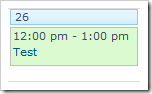 We Want: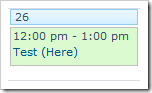
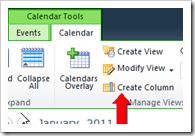 In our SharePoint calendar we’ll navigate over to the Calendar tab and click the "Create Column" ribbon button. We’ll call this column "Month View Title" and set the type to "Calculated". Now, let’s build up the formula. Remember, we want the end result to look like this:
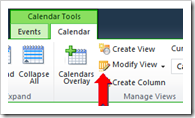 In your calendar, head back over to the Calendar tab again and this time click the "Modify View" button. In the Edit Calendar View settings we’ll change the "Calendar Columns" to show our new calculated fields. The title fields we’ll change are the "Month View Title", the "Week View Sub Heading" and the "Day View Sub Heading". Since we’re extra clever, we gave our calculated columns names which match up very nicely with these field titles. Click the OK button to save changes and we’re done.
 After many good years of publishing via dasBlog I made the decision to jump ship and start using WordPress. dasBlog has been speedy, stable and very easy to style. It’s a great power user tool but I’m now at the point where I want the simplicity of a more mainstream product.